
silentCAPTCHA Integration for Easy Form Builder forms
This guide shows you how to use the silentCAPTCHA AntiBot system from Shield Security as spam protection for Easy Form Builder forms. It works as a standard CAPTCHA alternative that effectively stops bots, but with no hassle for your visitors.
Note: This silentCAPTCHA integration is included with Shield Security free. No PRO required.
To get started, make sure you use Easy Form Builder v4 or later, then follow the steps below.
Step #1 - Install Shield Security plugin
Go to Plugins > Add New, search for “Shield Security”, then install and activate the plugin from wordpress.org.
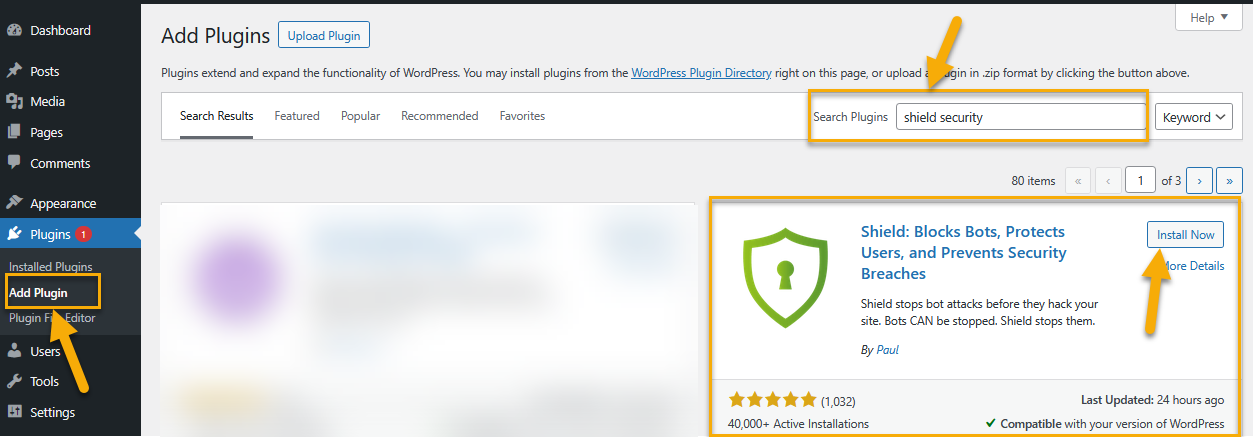
Step #2 - Configure silentCAPTCHA in Shield
Go to main Shield sidebar menu > Configure > Bots and IPs and click Configure next to the silentCAPTCHA component.
Here you'll need to configure the silentCAPTCHA Complexity, Bot Minimum Score, and High Reputation Bypass options detailed here.
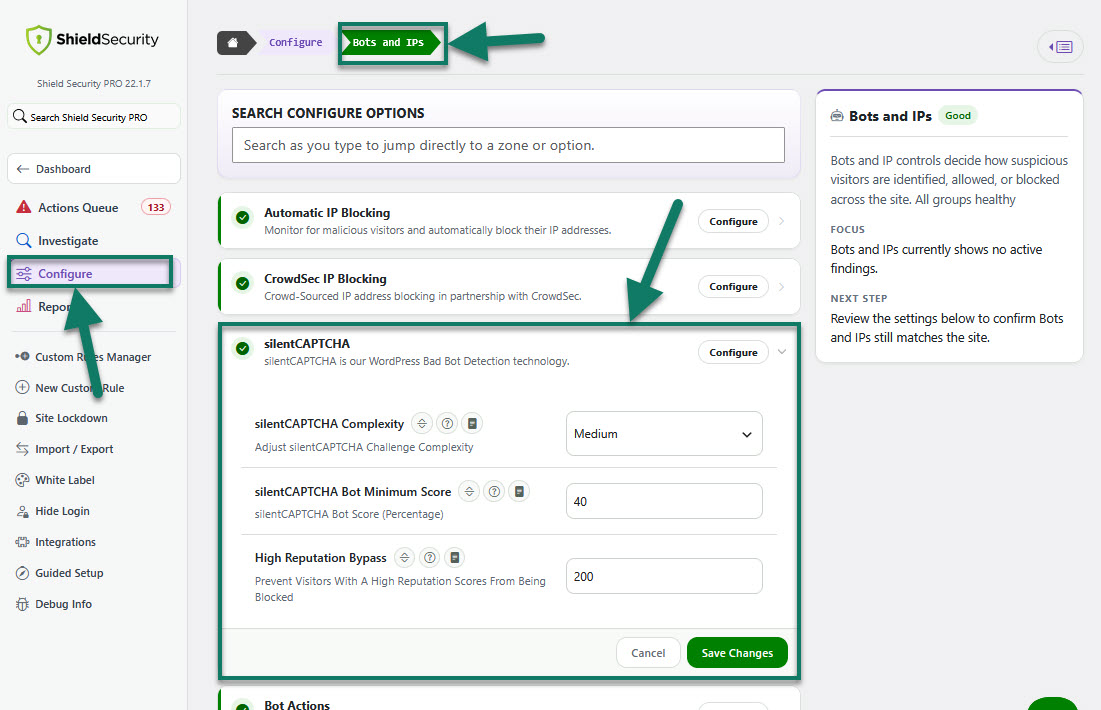
silentCAPTCHA system runs by default, and you can leave all settings at their default values until you want to adjust the protection level.
Step #3 - Enable silentCAPTCHA on your form
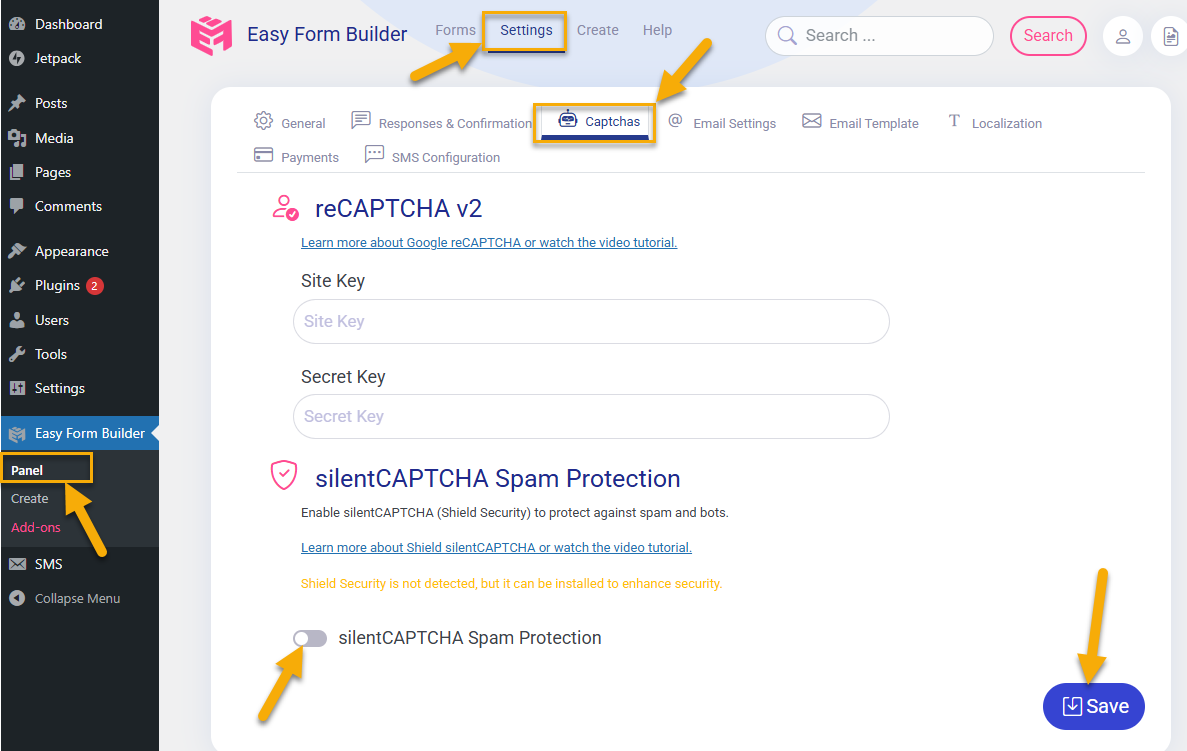
Open the Easy Form Builder Panel in your WordPress dashboard. From the top menu go to Settings > Captchas and enable silentCAPTCHA Spam Protection and save.
When you enable this option, Easy Form Builder will be ready for Shield, so you can then turn on silentCAPTCHA for each form.
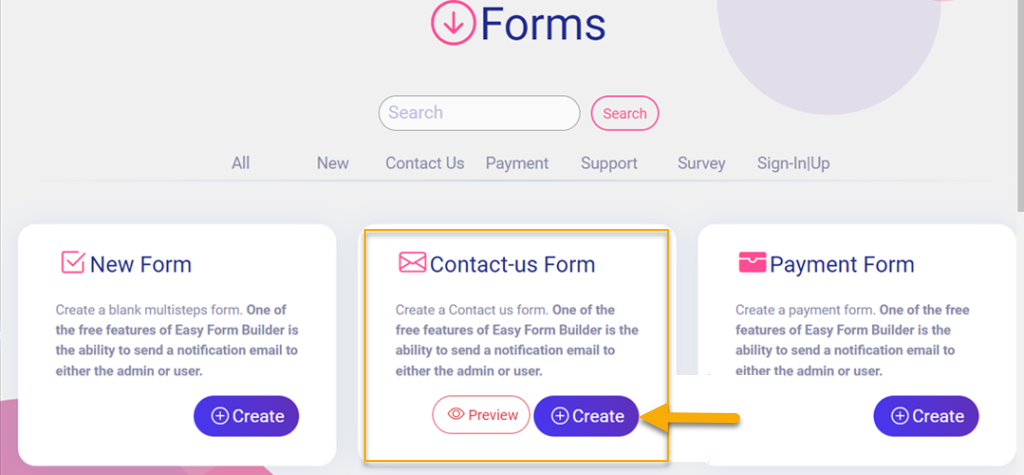
Then go to Easy Form Builder > Create > Contact-us Form. Here you can edit an existing form or create a new one you want to protect.
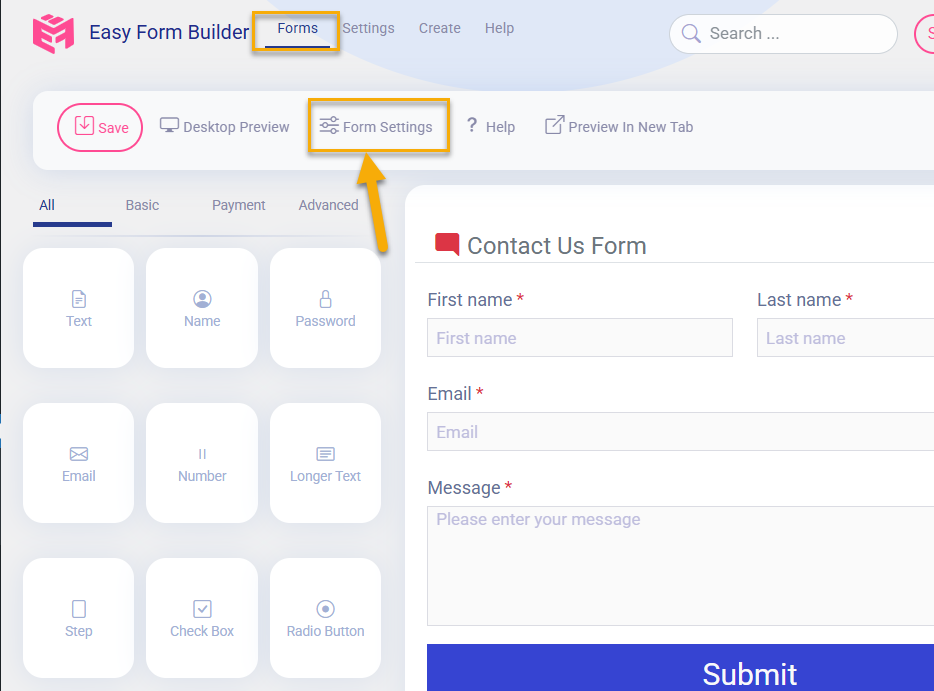
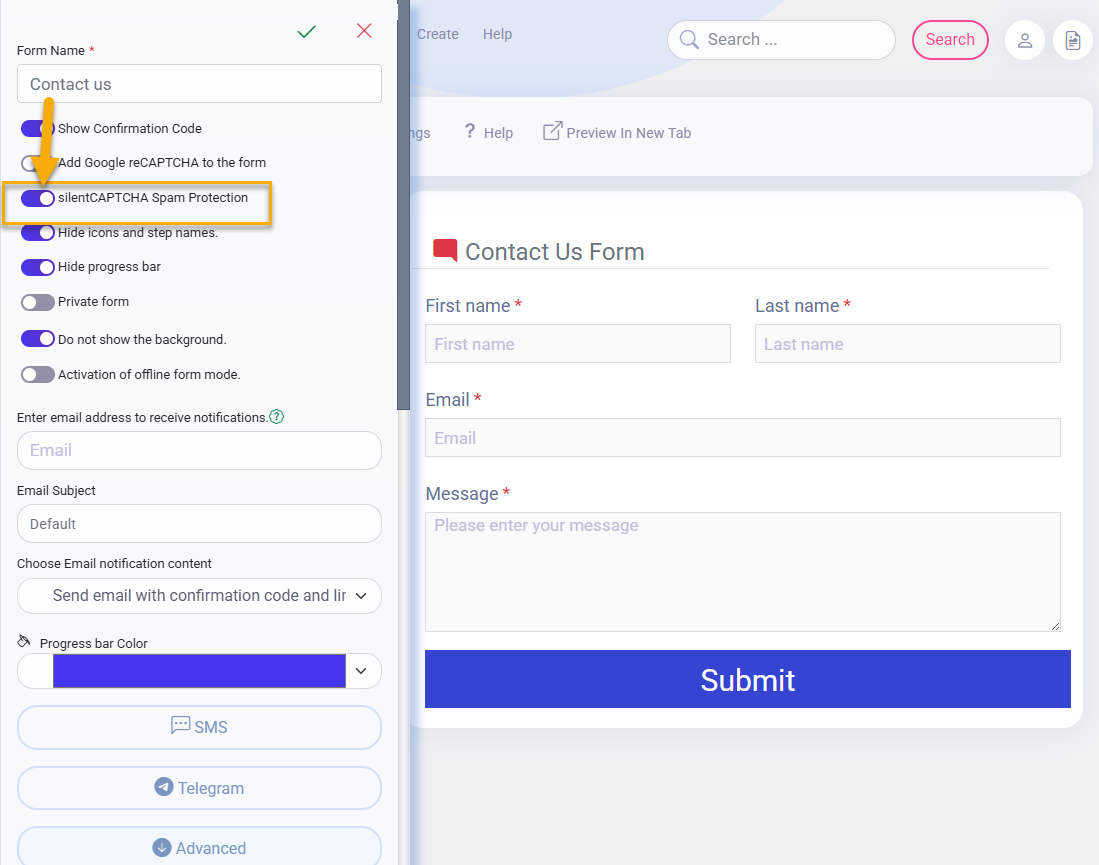
Use Form Settings in the top menu, and in the form settings sidebar enable silentCAPTCHA Spam Protection for that form. Save and update the form.
(see the screenshots below)
Repeat these steps for any other forms you want to protect.
For more detailed, Easy Form Builder–specific instructions, you can also follow their guide here.
How silentCAPTCHA works on forms
When you enable silentCAPTCHA on your form, the form stays visually the same and visitors do not see any CAPTCHA or have to click anything. Everything runs silently in the background, so genuine visitors can submit the form as normal while Shield can block clear bot‑like submissions before they reach you.
For a broader overview, see Shield silentCAPTCHA integration and How silentCAPTCHA Protects WordPress Contact Forms Against SPAM.