
How To Protect WordPress Contact Forms Against SPAM
Contact forms are a common target for spam. Shield Security can protect your forms in the background, so your real users/visitors can send messages as normal, while bots are blocked silently.
This guide shows how to configure Shield and then connect it to your contact forms, so Shield silentCAPTCHA antibot system can start protecting them against spam.
We will do this in three parts:
- first, configure silentCAPTCHA
- then, enable Contact Form SPAM Checking for your form plugin
- last, review and monitor your WP Activity Logs.
#1 - Configure silentCAPTCHA
silentCAPTCHA is Shield’s antibot system. It checks visitors quietly in the background and scores how likely they are to be bots.
- Log into your WordPress dashboard.
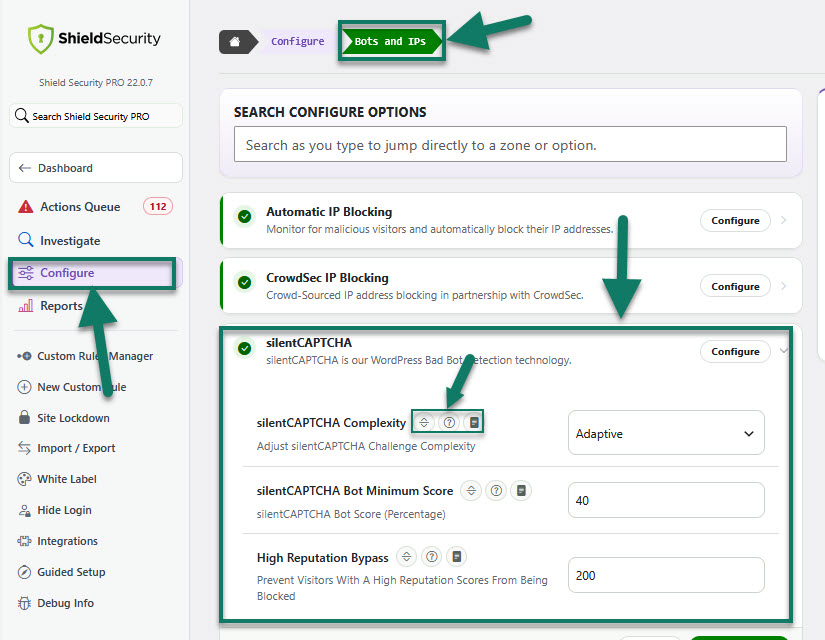
- Go to Shield Security > Configure > Bots and IPs zone.
- Click Configure next to the silentCAPTCHA component.
Here, you will see the following options:
Tip: You can always click the small icon to expand the description beside each option. This explains what the option does and links to the relevant help article if you want to learn more.
(see the screenshot below)
For most sites, you can start with these recommended values:
- silentCAPTCHA Complexity: Adaptive
- Minimum Score: 40
- High Reputation Bypass: 200
After setting the values, click Save Settings.
#2 - Select contact form for spam checking
Once silentCAPTCHA is configured, you need to tell Shield which contact form plugin you use. Shield will then use silentCAPTCHA to check submissions coming from that plugin.
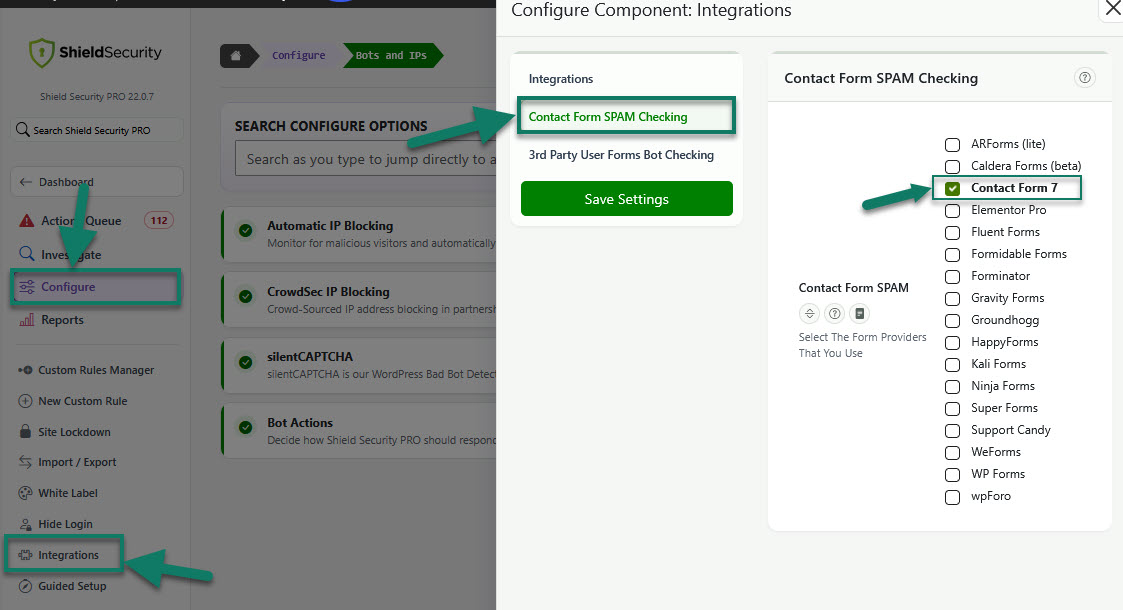
- Go to Shield Security > Configure > Integrations.
-
Select Contact Form SPAM Checking tab.
You will see a list of supported contact form providers.
- Tick the checkbox next to the contact form plugin you are using.
- Click Save Settings.
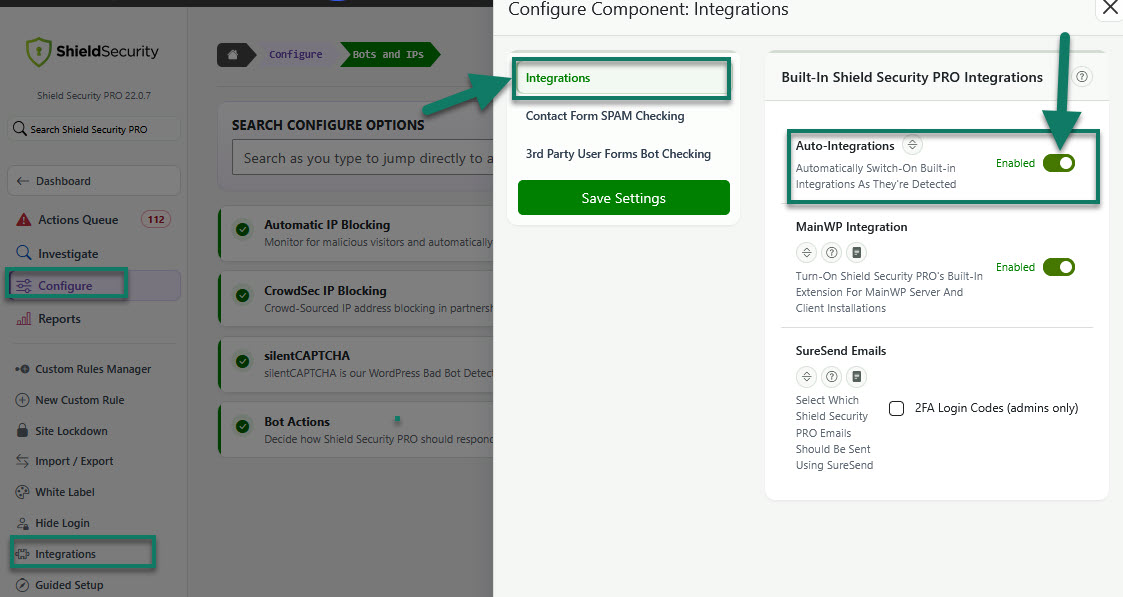
Alternatively, you can use automatic selection for active forms. This is a general option that controls how contact form integrations are handled.
If you enable this, Shield will automatically select all active contact forms from supported plugins on your site. This is useful if you have many forms and do not want to configure each one manually.
- Turn on the option that automatically selects active contact forms.
- Save your settings.
Important points to note
Only contact form providers that are on the list of integrated forms, and that you have selected there, can be protected. If your form is not on that list of supported providers, please reach out to us and we will be happy to discuss adding an integration for it.
Please also note that this is a Premium feature only.
What this means for your users
After you configure silentCAPTCHA and enable Contact Form SPAM Checking for your form provider:
- Shield starts protecting your contact forms automatically.
- silentCAPTCHA runs in the background on each submission.
- Automated bots that probe or attack your forms are blocked.
- Real visitors, even if they are not tech‑savvy, use the form as usual and do not see any extra fields or CAPTCHAs.
You don't have to change the form itself. The protection happens inside Shield, based on the settings you configured in this guide.
#3 - Monitor your WP Activity Logs
To check that Shield is protecting your contact forms, you can monitoring your WP Activity Log like your personal assistant, it records what is happening on your site, including contact form submissions and spam checks.
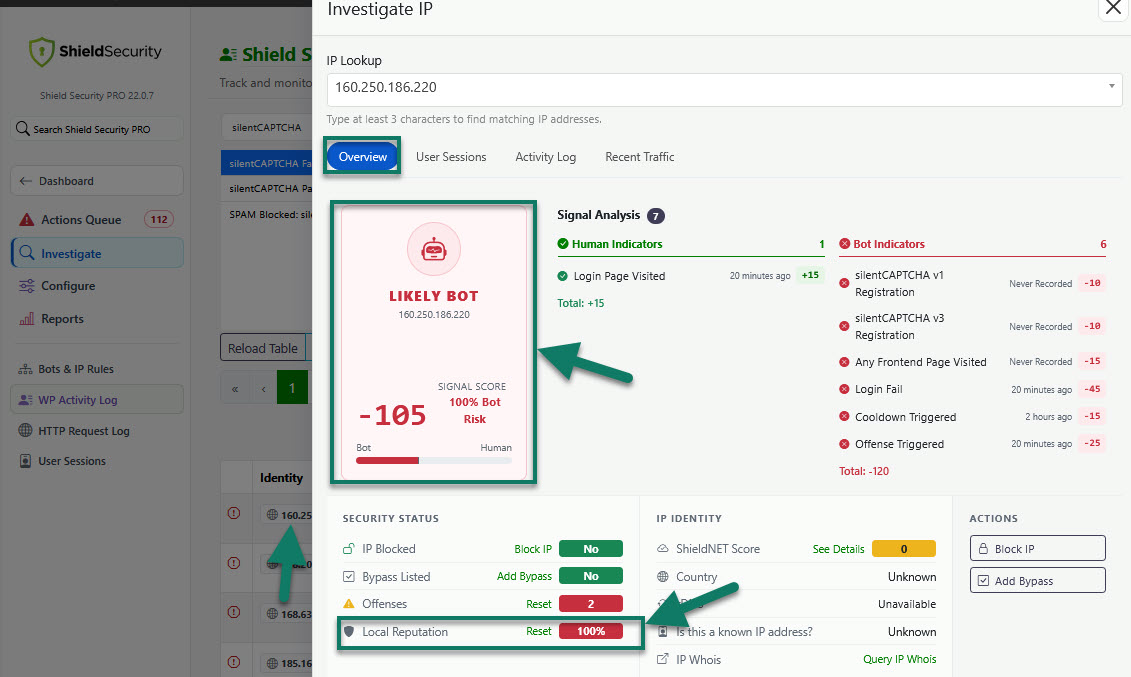
For example, you can filter logs by event name to see silentCAPTCHA (spam) checks for your forms. You'll see entries such as silentCAPTCHA Pass or silentCAPTCHA Fail. These events show when Shield’s silentCAPTCHA spam protection is checking and handling form submissions. (See the screenshots below)
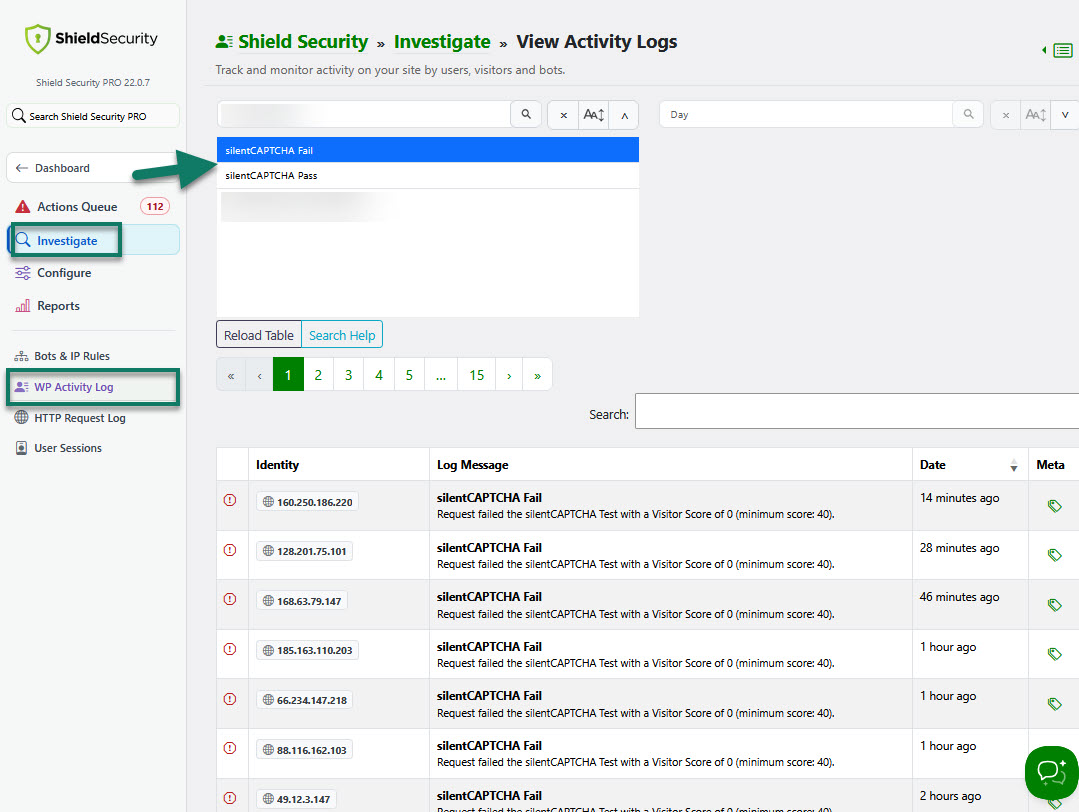
When you see a silentCAPTCHA Fail event, that usually means the submission was from a bot. In the log entry you can click the IP address to open up Investigate IP dialog and look at the Overview tab. For example, a Total Reputation Score of -105 with bad bot probability 100% is a strong sign this was an automatic bad bot that Shield has blocked for you.
When you see a silentCAPTCHA (spam) Pass event, that almost always means the submission came from a real visitor. This shows that Shield is allowing legitimate visitors through while still blocking bad bots in the background.
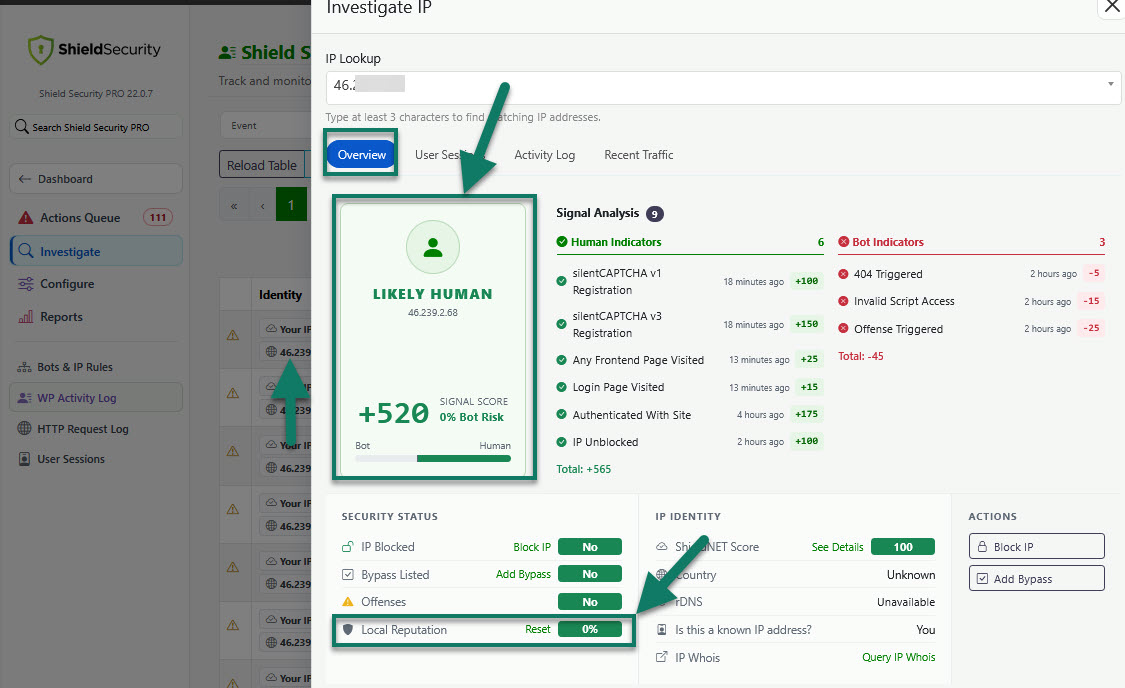
Together, these entries confirm that your contact form integration is working and that Shield is actively protecting your forms.
You may also want to read